1 Introduction
[hide]
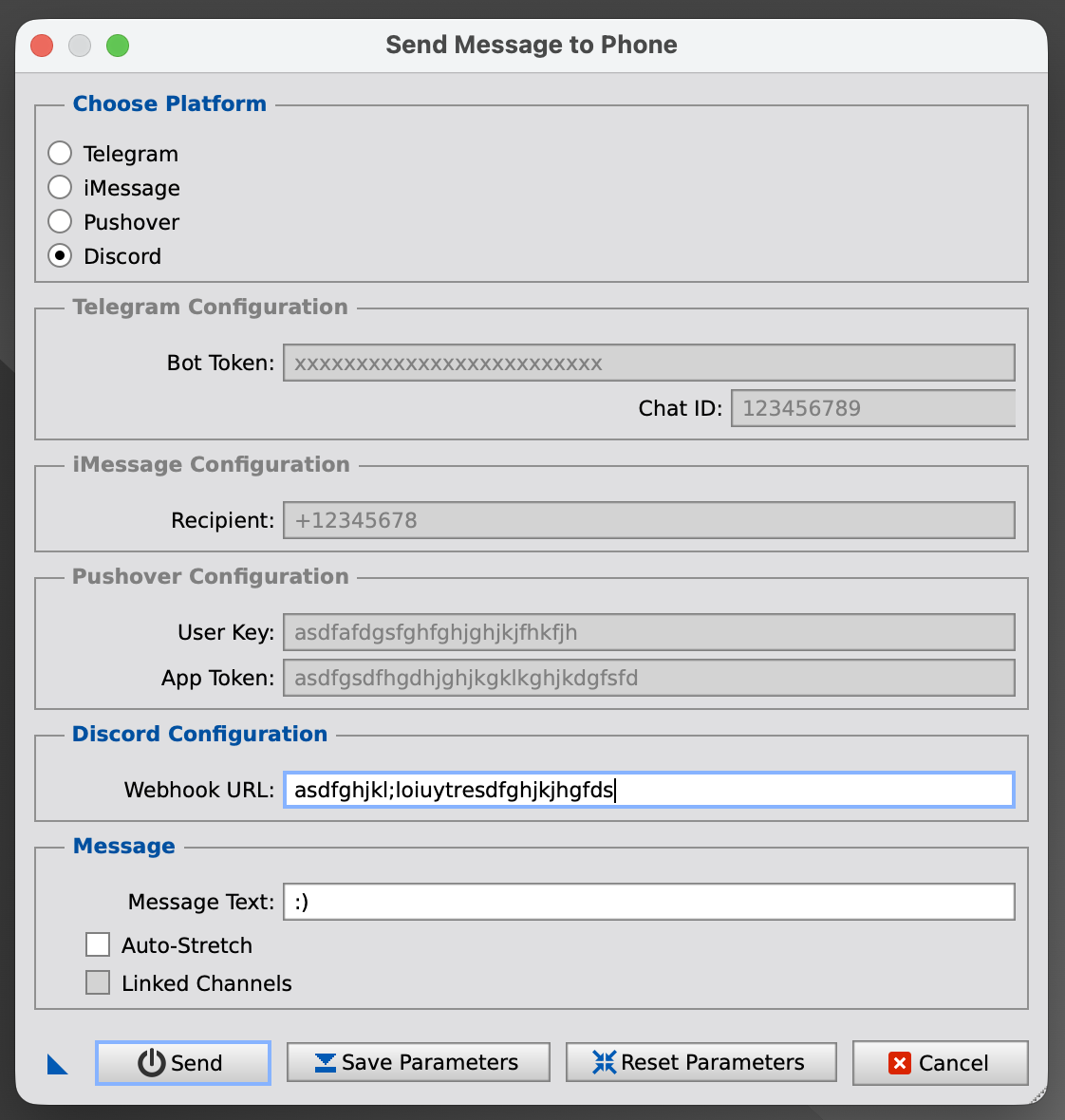
The SendMessageToPhone script allows users to send images and notifications directly via Telegram, Discord, iMessage (Mac only), or Pushover. This script also serves as the central configurator of things like the NotificationEventScript.
This document will guide you through the process of setting up the SendMessageToPhone script and using it to send notifications.
2 Setup
[hide]
In order to use the SendMessageToPhone script, you need to configure it to send messages and images via your preferred messaging platform: Telegram, Discord, iMessage, or Pushover. Follow the detailed steps below to set it up.
Step 1: Open the SendMessageToPhone script in PixInsight's Script Menu.
Step 2: Select the messaging platform you would like to use:
- Telegram
- Discord
- iMessage
- Pushover
Step 3: Configure the fields for your selected platform. See the dedicated setup section for your chosen method below.
Step 4: Run the script
The script will be run on the active image window. If there is no active window, no image will be sent.
3 Telegram Setup
[hide]
Telegram delivery requires a bot token and a chat ID.
- Bot Token: Create a bot through BotFather in Telegram and copy the generated token.
- Chat ID: Start a chat with your bot, then visit https://api.telegram.org/bot<YourBotToken>/getUpdates with your real token and read the numeric id field inside the returned chat object.
4 Discord Setup
[hide]
If you want to use the Discord option in SendMessageToPhone, you first need to create a webhook inside the Discord server and channel where you want the notifications to appear.
What the script needs
Discord describes webhooks as a simple way to post automated messages from other apps and websites into a text channel. When you create one, Discord generates a Webhook URL. That is the value you paste into the Webhook URL field of this script.
Required permission
To create or manage a webhook for a channel, your account needs Discord's Manage Webhooks permission for that channel. If you do not see the webhook creation options, this permission is the first thing to verify with your server admin.
Create the webhook
- Step 1: Open your Discord server and go to Server Settings > Integrations.
- Step 2: Open the Webhooks area and click Create Webhook.
- Step 3: Give the webhook a recognizable name, especially if you plan to use more than one automation or PixInsight setup.
- Step 4: Choose the text channel where messages from SendMessageToPhone should be posted.
- Step 5: Optionally set a custom avatar so webhook messages are easier to recognize in the channel.
- Step 6: Copy the generated Webhook URL. Paste that URL into the Discord Webhook URL field in SendMessageToPhone.
Managing an existing webhook
Discord's Integrations page also lets you review existing webhooks, see which channel each one posts to, edit the webhook's name, avatar, or destination channel, copy its URL again, or delete it when you no longer need it.
Important notes
- Treat the Webhook URL like a secret. Anyone who has it can post messages to that Discord channel through that webhook.
- For this PixInsight script, use the copied Discord webhook URL directly.
- If you move the webhook to another channel later in Discord, the script will start posting there automatically because the URL still points to that webhook.
5 iMessage Setup
[hide]
iMessage setup is the simplest, but it is only available on macOS.
- Recipient: Enter the destination Apple ID, email address, or phone number that Messages can send to on your Mac.
- Platform note: If you are not running PixInsight on macOS, use Telegram, Discord, or Pushover instead.
6 Pushover Setup
[hide]
Pushover requires two values: your account's user key and an application token.
- Step 1: Create or sign in to your account at https://pushover.net.
- Step 2: Register an application in Pushover to obtain an App Token.
- Step 3: Copy your User Key and App Token into the corresponding fields in SendMessageToPhone.
- Attachment note: Pushover supports image attachments, and this script sends the active image as a JPEG.
8 Usage
[hide]
In addition to running it on the active image window, you may also save (any number of) instances as process icons. They may have different parameters. The process icon can be dragged onto any image and the image will be sent out according to the parameters selected.
9 Limitations
[hide]
The script has a few limitations:
- Telegram: Requires curl to be installed and working. Make sure your system has internet access.
- Discord: Requires curl, internet access, and a valid Discord webhook URL for a channel you can post to. The script exports a JPEG preview and may downsample large images before upload.
- iMessage: Only available on macOS. If you are using Windows or Linux, you need to use Telegram, Discord, or Pushover.
- Pushover: Requires curl. Your image must be converted to a JPEG, and its size must comply with Pushover limits (currently 2.5MB max). If the image is too large, the script will attempt to downsample it.
10 Troubleshooting
[hide]
If you face any issues with the notifications, here are some common fixes:
No notifications received?
- Double-check your Telegram Bot Token and Chat ID (for Telegram), Discord Webhook URL (for Discord), Recipient (for iMessage), or User Key / App Token (for Pushover).
- Ensure that curl is working properly and is available in your system path.
Discord messages not appearing
- Make sure the webhook still exists and that you pasted the full webhook URL into the Discord configuration field.
- Verify that the webhook points to the channel you expect. In Discord, each webhook is tied to a specific server channel.
Image not received via Pushover
- Ensure the image is not too large. The script automatically reduces the image size if it exceeds recommended limits, but Pushover has a strict 2.5MB file limit.
- Make sure the file is being saved as a valid JPEG and your API keys are correct.
Error: "No valid target image found"
- This error occurs when no active image is found in PixInsight when the script is triggered. Ensure that an image window is open.
Copyright © (c) 2025 Luca Bartek