1 Introduction
[hide]
The Notification Event Script provides a way to receive real-time notifications during the execution of the Weighted Batch Preprocessing (WBPP) pipeline in PixInsight. This script supports multiple messaging platforms, including Telegram, iMessage, and Pushover, to send updates, error messages, and image notifications.
Support for Telegram text-only notifications was originally implemented by Marco Manenti. See his project at https://github.com/verbavolant/eventSendMessageToTelegram.
Support for Pushover notifications with images was contributed by Brian Weber, whose guide can be found at https://blog.briangweber.com/pushover-setup/.
2 Setup
[hide]
In order to use the Notification Event Script with WBPP (Weighted Batch Preprocessing), you first need to configure the notification system you want to use. This is done through the SendMessageToPhone script, which currently allows you to select either Telegram, iMessage, or Pushover as the platform to receive notifications.
Follow the steps below to configure the notification system:
Step 1: Open the SendMessageToPhone script in PixInsight's Script Explorer.
Step 2: Select the messaging platform you want to use: Telegram, iMessage, or Pushover. You will see three radio buttons: one for Telegram, one for iMessage, and one for Pushover. Click the radio button next to the platform you want to use.
Step 3a: If you selected Telegram, you will have to enter the Telegram Bot Token and Chat ID. To send notifications via Telegram, you'll need to Set up your Telegram Bot first. This feature was originally implemented by Marco Manenti, and a standalone version of his script can be found at https://github.com/verbavolant/eventSendMessageToTelegram.
Step 3b: If you selected iMessage, enter the Phone Number of the recipient in international format. For iMessage, enter the recipient of the person who will receive the notifications. This is likely your own Apple ID if you'd like to receive the notifications yourself, but technically you could insert any AppleID here. Ensure PixInsight has the rights to execute AppleScript: Run the script standalone once, at which point it will ask for the necessary permissions. Accept.
Step 3c: If you selected Pushover, enter your User Key and App Token. To use Pushover, you must create an account at https://pushover.net and register a new application. Copy the credentials and paste them into the appropriate fields. Pushover works across all operating systems and does not rely on a specific platform. Setup instructions and examples are available in Brian Weber’s guide at https://blog.briangweber.com/pushover-setup/.
Step 4: Save the configuration by clicking the Save Parameters button. Once you've filled out the necessary fields, click the Save Parameters button to save your settings. This will store the Bot Token, Chat ID, recipient phone number, and other options so that the script can send notifications during the WBPP process.
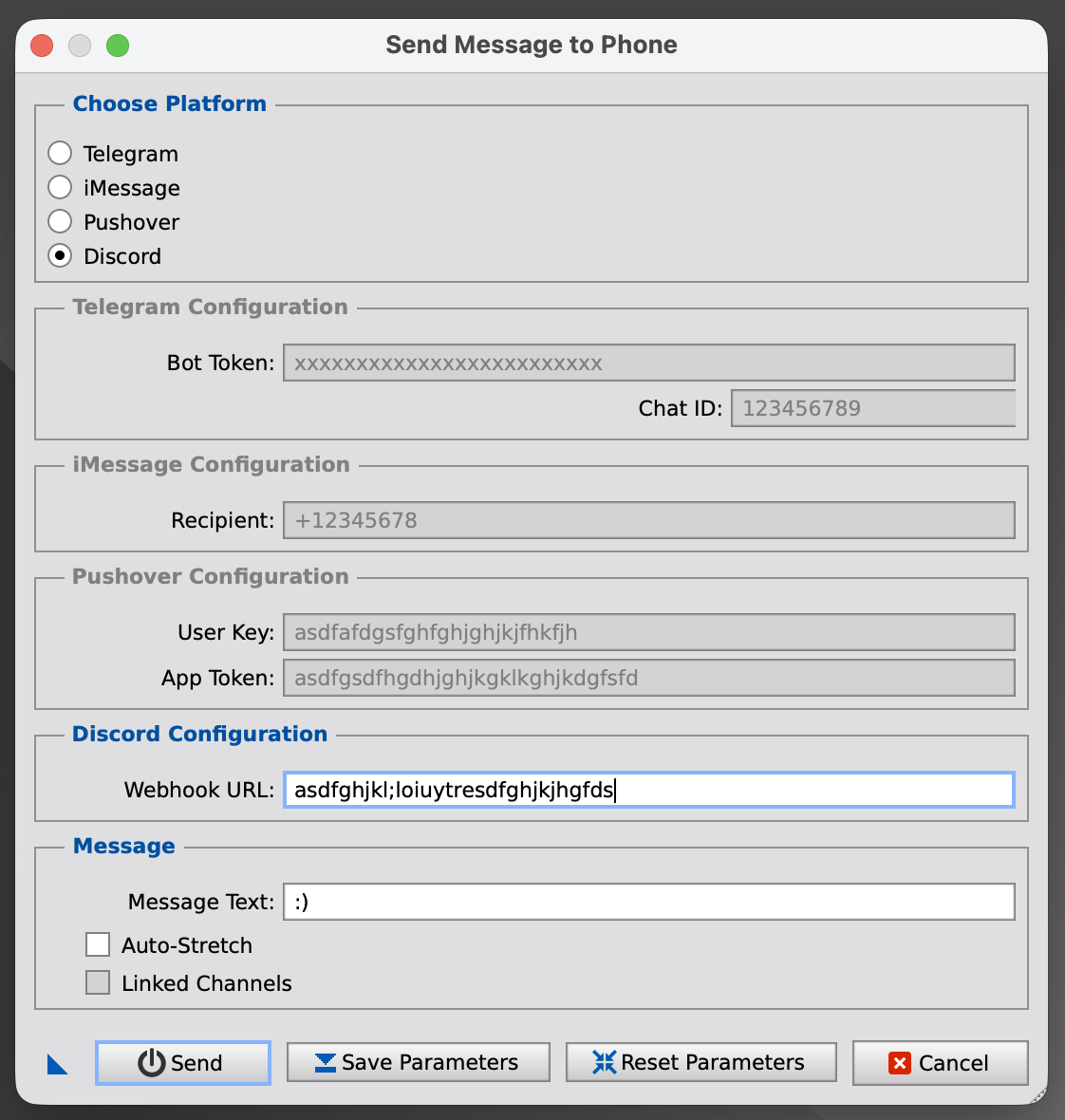
An example of a Telegram Bot Configuration
3 Usage
[hide]
Notifications typically include:
- Current WBPP step
- Operation status summary
- Error message (in case of failure)
Example messages:
WBPP started
ImageIntegration starting: processing 48/62 active frames
LocalNormalization failed, Cannot open reference image
WBPP terminated
ImageIntegration successfully executed
4 Setting up a Telegram Bot
[hide]
Setting Up a Telegram Bot
- On your phone, open Telegram and search for the user BotFather.
- Start a chat and type: newbot.
- Follow the instructions to create a bot and receive an API token e.g. 63xxxxxx71:AAFoxxxxn0hwA-2TVSxxxNf4c.
- Copy the bot token; you will need it for this script.
Finding Your Telegram Chat ID
- Start a new chat with your new bot.
- Visit the website https://api.telegram.org/bot63xxxxxx71:AAFoxxxxn0hwA-2TVSxxxNf4c/getUpdates - make sure to replace the bot token with the token you got from the BotFather.
- It will show you a response similar to the following:
"ok": true,
"result": [
{
"update_id": 83xxxxx35,
"message": {
"message_id": 2643,
"from": {...},
"chat": {
"id": 123456789,
"first_name": "...",
"last_name": "...",
"username": "@username",
"type": "private"
},
"date": 1703062972,
"text": "/start"
} } ]}
5 Limitations
[hide]
- The script uses the curl utility to interact with Telegram and Pushover. Ensure your system has access to the internet and curl is available.
- iMessage sending is only available on macOS. If you're running this script on Windows or Linux, use Telegram or Pushover instead.
- Pushover imposes a limit of 2.5MB on image attachments. If your image is too large, the script will downsample it. Only JPEG format is supported.
- Notifications may be delayed if there is network congestion or if the bot/token/user credentials are incorrect.
6 Troubleshooting
[hide]
- If no notifications are received, ensure the Telegram Bot Token and Chat ID, iMessage Recipient, or Pushover credentials are entered correctly.
- Check if the curl utility is working properly on your system. You can test this by sending a test message manually using the command line.
- If using Pushover, ensure that the image is smaller than 2.5MB, and that it is being saved as a valid JPEG.
- If you receive a "No valid target image found" error, ensure there is an active image in PixInsight when running the script.
Copyright © (c) 2025 Luca Bartek. Telegram contribution by Marco Manenti. Pushover contribution by Brian Weber.